Save the whole schedule
In CAlarm, a schedule can be stored as a template with its title, start and end time, notes, URL and colour intact. Next week it comes back in the same shape, so you are not reconstructing the settings from memory each time.
The parts inside are templates too
Alarms, pre-alert reminders and time markers that live inside a schedule can each be saved as templates of their own. If a plan always carries the same three items, that arrangement is kept rather than rebuilt.
Apply it to a date in one tap
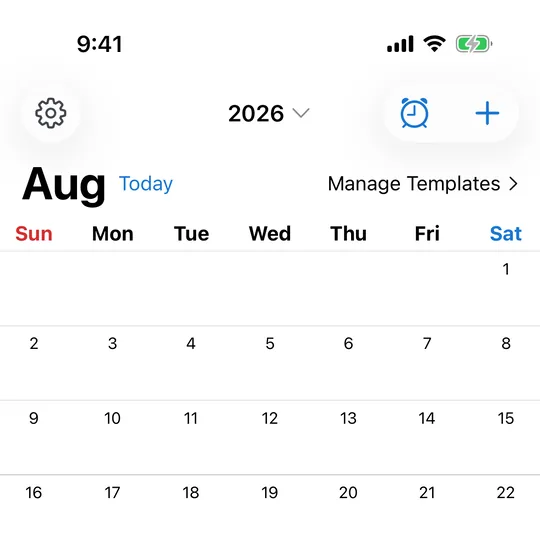
Pick a date on the CAlarm calendar, choose a template, and the schedule is created. It saves the most time on rotating shifts and on monthly commitments you want to enter several months ahead. Drag to reorder the list so the ones you use most stay at the top.
Put the one you use most at the top
Templates reorder by drag and drop. The rota you apply every week belongs at the top; the one you use twice a year can live at the bottom. It is a small thing that decides whether you actually use templates or go back to typing the same schedule out.
A week of shifts in a few taps
Because a template applies to whichever date you have selected, a published rota becomes a short sequence: pick the day, apply the pattern, move on. Each one brings its alarms and pre-alerts with it, so a week of shift work goes in without setting a single time by hand.