Manage alarms with schedules
Create a schedule and attach alarms, pre-alerts and time-only markers to it. It suits anything where the preparation matters as much as the event itself.
Updated
The built-in iPhone alarm only takes a time, so it cannot ring on one specific date (how it compares). CAlarm takes a date and a time together. Here is how to set one, plus the repeat and sound options you will reach for next. New to CAlarm? Try them in this order.
Download on the App StoreInstall CAlarm from the App Store and open it. It requires iOS 26.0 or later. Allow notifications when asked on first launch.
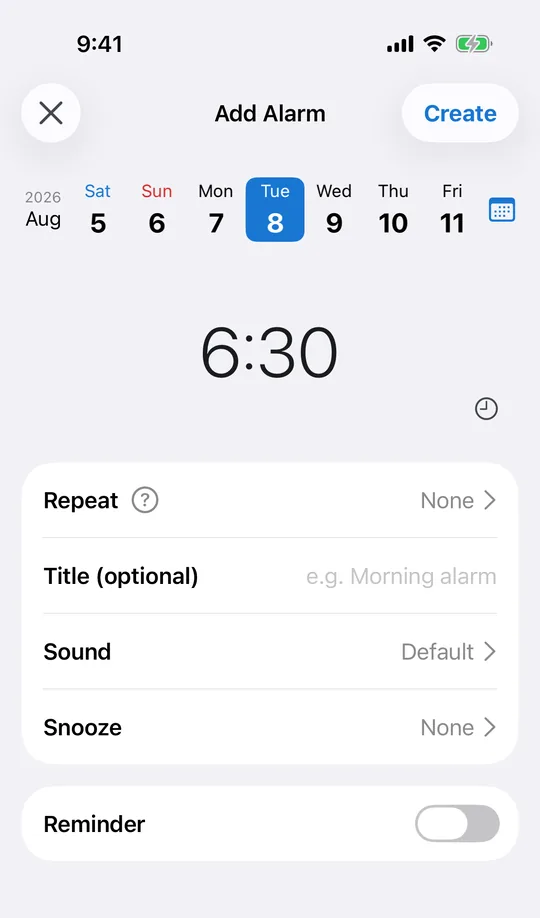
Tap the "+" button to open the new-alarm screen. What you are making here is a one-time alarm, with the date and the time set together.
Choose the year, month and day in the picker. It switches between a wheel and typed entry, and the previous / next day controls at the bottom move a day at a time. A date weeks or months out works the same as tomorrow.
Set the hour and minute on the same screen. The minute step can be changed in settings to 1, 5, 10, 15 or 30 minutes, so you get there in fewer turns when five-minute precision is enough.
There are 25 alarm sounds, and the volume can be set to low, medium or high. Snooze can be off, 1 to 30 minutes, 45 minutes, 60 minutes, or 2 to 12 hours.
One-time alarms can carry a pre-alert that fires beforehand: 5, 10, 15 or 30 minutes, 1 or 2 hours, 1 or 2 days, or a week before. Each one holds a title, a note and a URL.
Tap "Save" at the top right and it is set. It rings at that date and time at ringer volume, even on silent or in Focus. With automatic cleanup on in settings, it removes itself once it has rung.
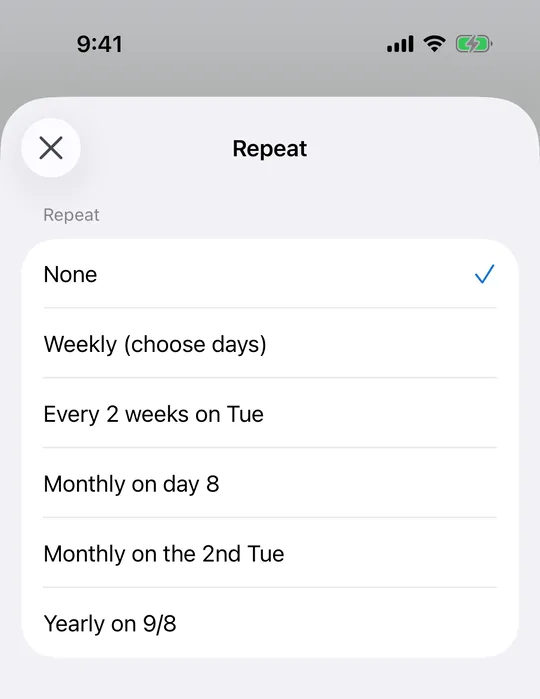
Repeats are derived from the date you have selected in the editor. Pick the date first, then open Repeat, and the options you see already match it — you never count weeks yourself.
"Weekly" takes any combination of days from Monday to Sunday. Weekly is the one handed to the system directly, so it runs indefinitely without opening the app. Biweekly, monthly, monthly-by-nth-weekday, last-weekday and yearly are Premium repeats; they are registered a few occurrences ahead and topped up whenever you open CAlarm.
Monthly by date skips the months that have no 31st rather than sliding into the next one. There is no "5th Friday" option because some months do not have one — use "last Friday of the month" instead, which is what you want for a month-end bin collection or a monthly review.
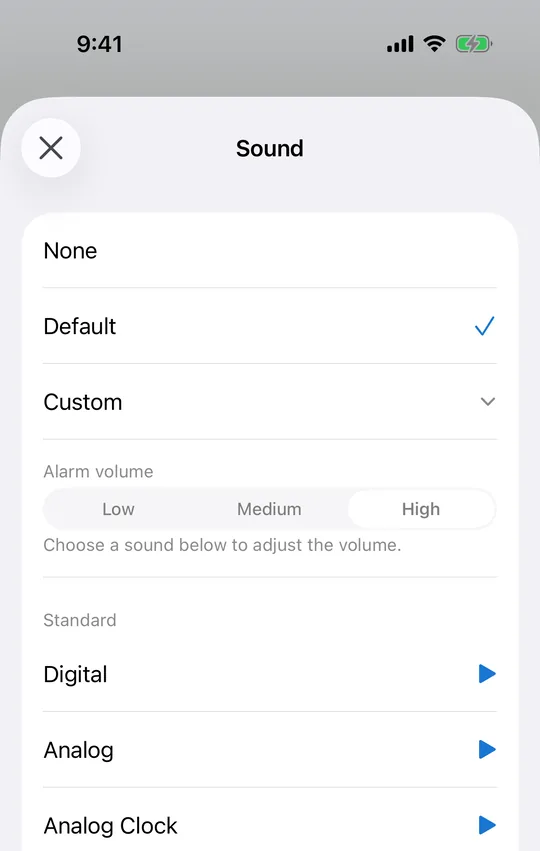
Open Sound on the alarm editor. There are 25 tones: classic ones such as buzzer, digital, analog and doorbell; nature such as birdsong, jungle, forest and running water; music box; songs; seasonal tones for Christmas and Halloween; and emergency, siren and the Japanese disaster alert. A preview button plays each one.
Volume sits on the same screen at low, medium or high. It plays at ringer and alarm volume rather than media volume, so turning a video down before bed leaves the alarm where you set it.
Snooze runs from one minute up to twelve hours. Keep it short to stop yourself dropping back off, or long as a backstop when a nap has already run past its welcome.
Create a schedule and attach alarms, pre-alerts and time-only markers to it. It suits anything where the preparation matters as much as the event itself.
Long-press an existing alarm to duplicate it, then change the date. Swipe to delete, and undo straight away if you swiped the wrong row.
Combinations you build often can be saved as templates, including the alarms and reminders inside them.
The Home Screen widgets list what rings next in time order. The Lock Screen widget shows the next single item and is a Premium feature.
The calendar marks the days that have something on them. Holidays can follow Japan or the United States, the week can start on Sunday or Monday, and rokuyo can be shown.
Theme colour, app icon, dark mode, font and text size are all in settings. Text size has seven steps independent of the system setting.
Requires iOS 26.0 or later · Free (with in-app purchases)