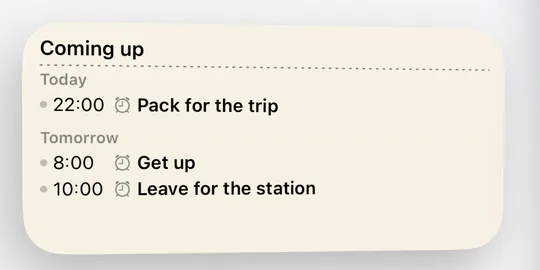
It lists from now, not just today
The CAlarm widget shows what rings next rather than what is scheduled today, which matters when your only alarm is three weeks away. Small fits two items; Medium splits the next two days that have alarms into two columns and skips the empty ones.
Dates you can actually read
Because it looks beyond today, a bare time would be ambiguous. Near items read "Today" or "Tomorrow", and anything further out reads as a date, so you can tell this evening from the middle of next month at a glance.
Alarms, pre-alerts and time notes together
The CAlarm calendar widget mixes alarms, pre-alerts and time-only markers into one run in time order, with a heading where the date changes. It does not split into today and tomorrow columns, so a shift that crosses midnight stays in one piece.
One item under the clock
The Lock Screen widget shows the next single item with its date, what it is and which schedule it belongs to, and a one-line version can sit above the clock. Type icons tell an alarm apart from a pre-alert. This one is a Premium feature; the Home Screen widgets are free.
It refreshes itself when things change
Editing an alarm or a schedule rewrites what the widget reads, so what you see is current without opening the app. Nothing is capped to the next few days either: if the only thing you have is three weeks out, that is what the widget shows rather than an empty box.